| Description | Here are some of the benefits of using an RJ45-to-DB9 console cable to connect a computer to a security camera:It is a simple and easy way to connect a computer to a security camera.
It is a reliable and durable cable.
It is a cost-effective solution.
If you are looking for a way to connect a computer to a security camera, an RJ45-to-DB9 console cable is a good option | Here are some of the benefits of using a USB 3.0 hub:You can connect more devices to your computer.
You can transfer files faster.
You can use your devices more efficiently.
You can save space on your desk.
If you need to connect more devices to your computer, a USB 3.0 hub is a great solution. | Here are some of the drawbacks of the Storite Power Cable Cord:Not compatible with all power outlets
May not be as long as some other power cables
Overall, the Storite Power Cable Cord is a great value for the price and is a reliable way to power your devices. It is made of high-quality materials and is built to last. It is also fully molded for maximum durability and long life. If you are looking for a power cable that is compatible with Indian power outlets and is built to last, the Storite Power Cable Cord is a great option. | Here are some of the benefits of using a DP to VGA connector:It is a cost-effective way to connect a DisplayPort output to a VGA input.
It is easy to use.
It can provide a good level of image quality for most applications.
Here are some of the drawbacks of using a DP to VGA connector:It can only transmit a limited amount of data.
It may not be able to achieve the same level of image quality as a direct connection between your device and your display.
Overall, DP to VGA connectors can be a useful way to connect a DisplayPort output to a VGA input. They are relatively inexpensive and easy to use, and they can provide a good level of image quality for most applications | Here are some of the benefits of using DP to DP connectors:They support high-definition video and audio resolutions.
They can support HDR video.
They are reliable and efficient.
They are available at a variety of prices.
If you are looking for a high-quality way to connect your DisplayPort devices, then a DP to DP connector is a great option. | Here are some of the benefits of using a VGA to HDMI with Audio Adapter:Allows you to connect VGA devices to HDMI monitors or projectors
Small and lightweight
Made of durable materials
Compatible with a variety of devices
Affordable
If you have a VGA device and a new monitor or projector that only has HDMI ports, then a VGA to HDMI with Audio Adapter is a great way to connect the two devices. |
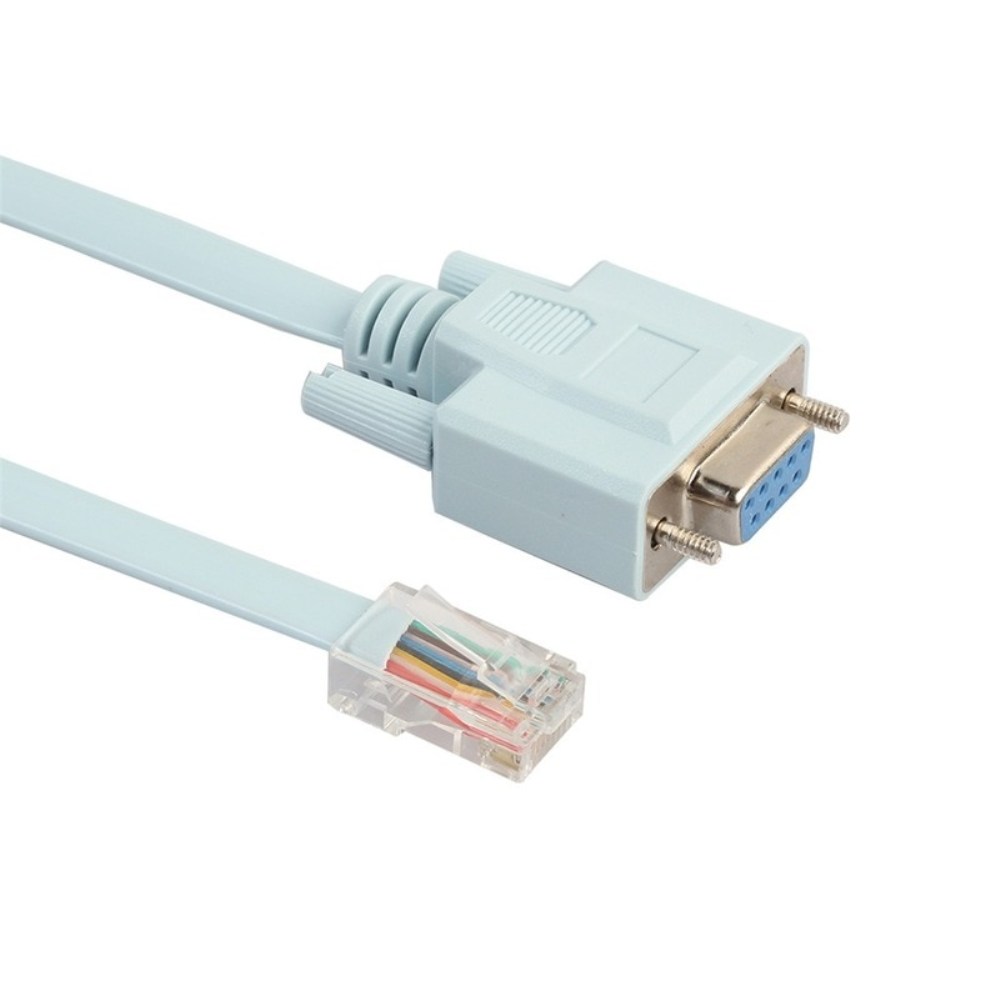
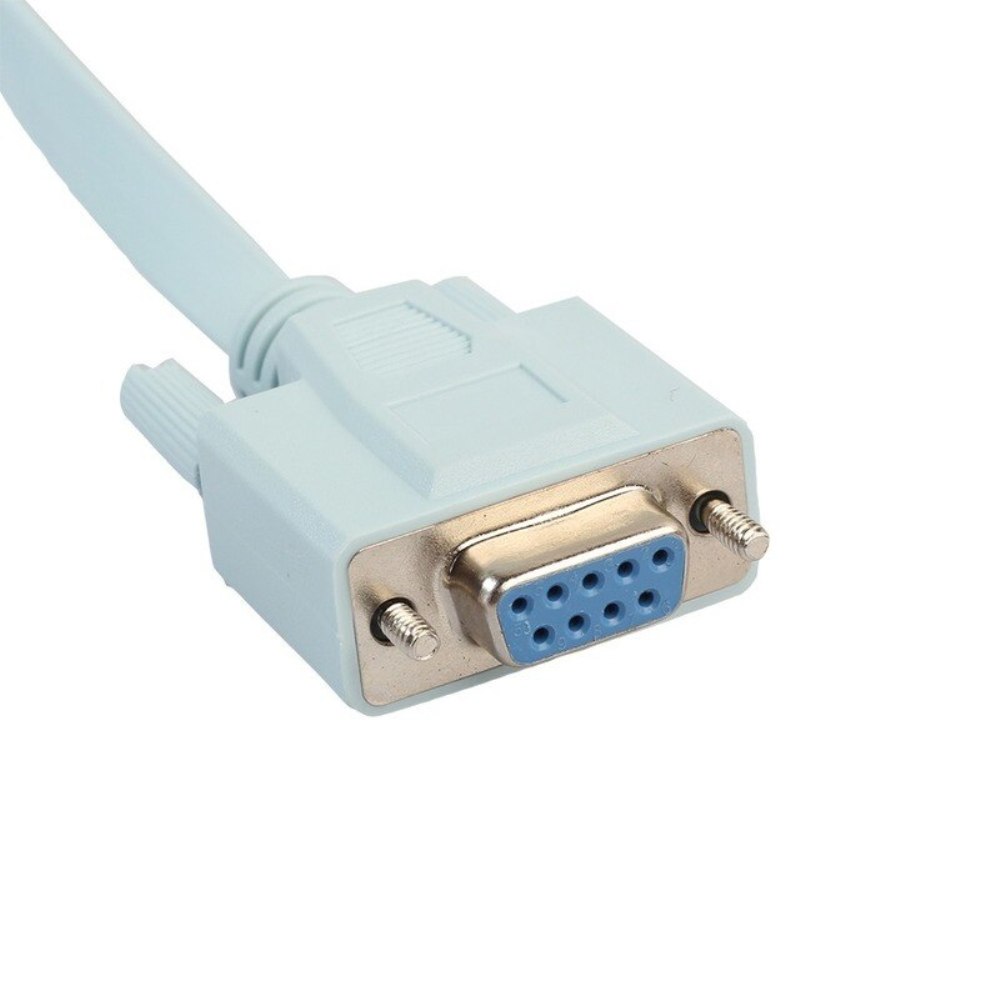
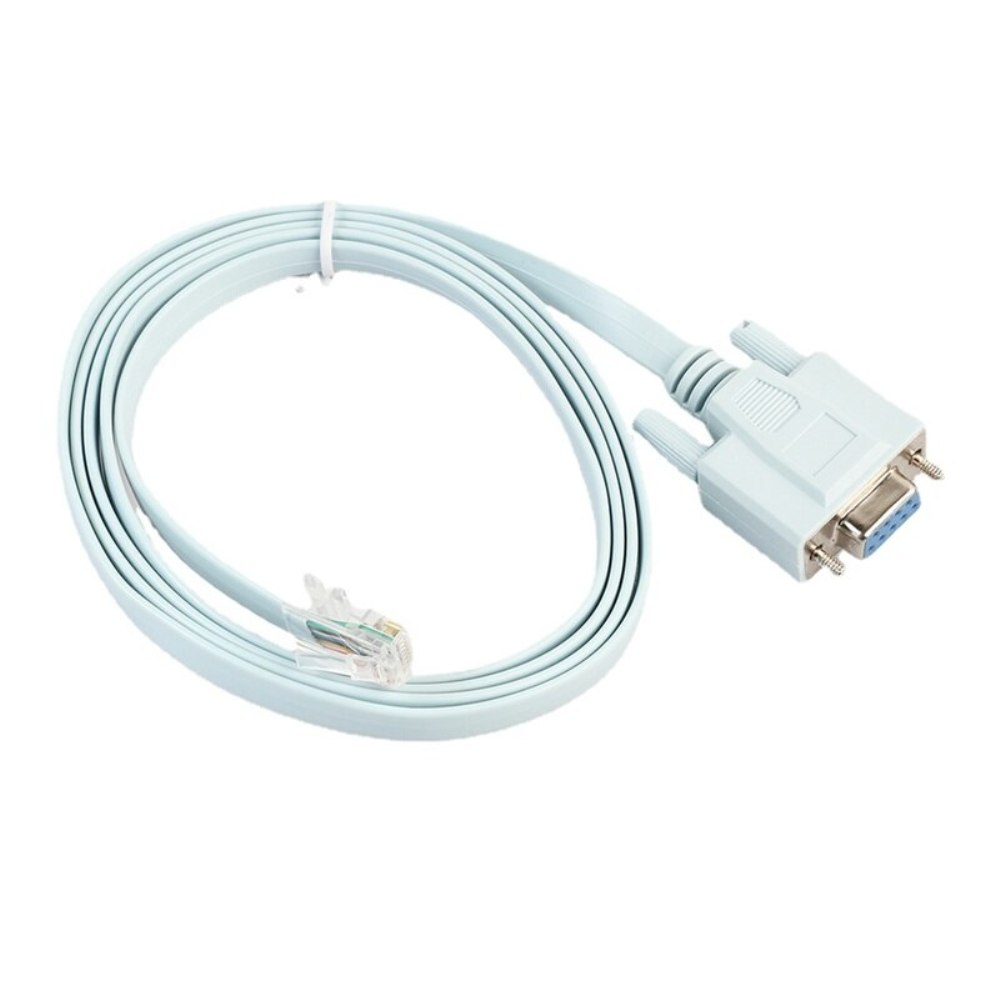
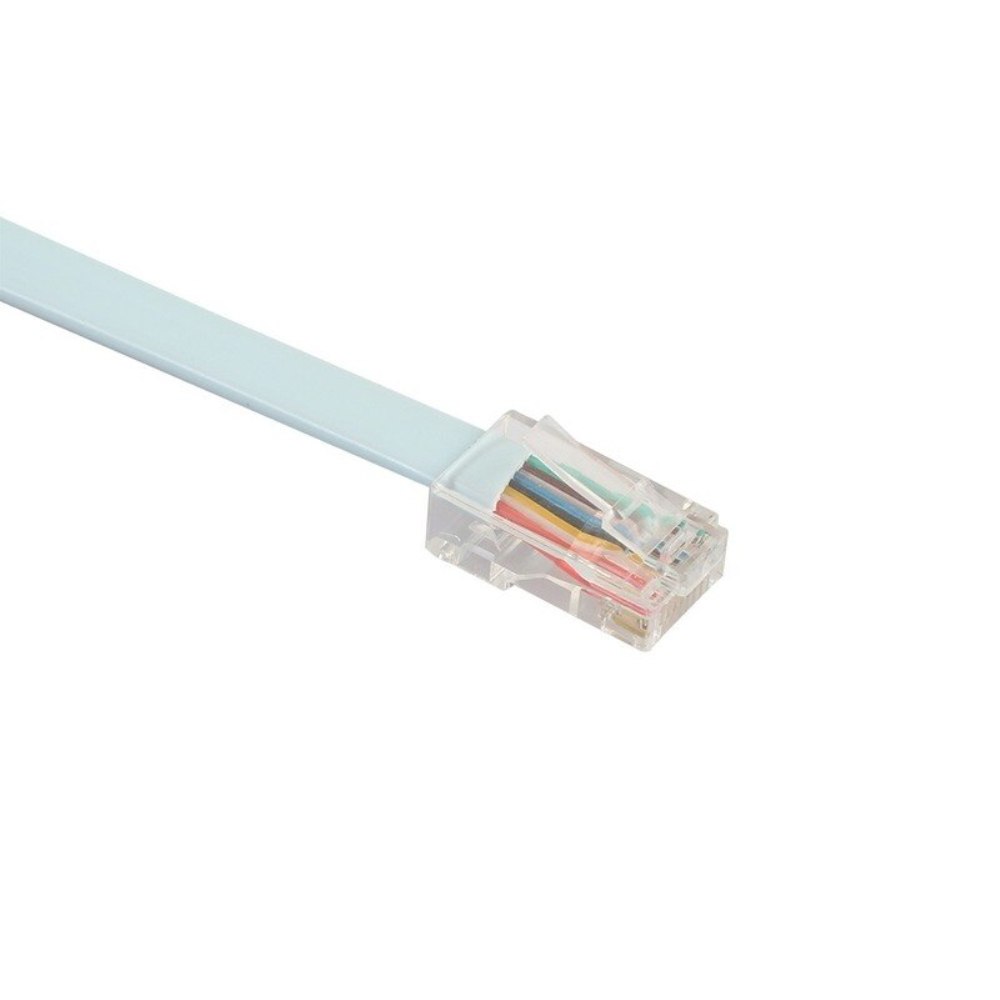
| Content | An RJ45-to-DB9 console cable is a type of cable that is used to connect a computer to a security camera. The RJ45 end of the cable connects to the computer's serial port, and the DB9 end of the cable connects to the security camera's console port. This type of cable is used to configure and manage the security camera.The RJ45 connector is a standard connector that is used for Ethernet connections. The DB9 connector is a smaller connector that is used for serial connections. The serial port on a computer is a legacy port that is used for connecting devices such as modems, routers, and security cameras.To use an RJ45-to-DB9 console cable to connect a computer to a security camera, follow these steps:Connect the RJ45 end of the cable to the computer's serial port.
Connect the DB9 end of the cable to the security camera's console port.
Power on the security camera.
Open the security camera's configuration software on the computer.
Use the configuration software to configure the security camera.
Once the security camera is configured, you can disconnect the RJ45-to-DB9 console cable from the computer and the security camera.Here are some of the benefits of using an RJ45-to-DB9 console cable to connect a computer to a security camera:It is a simple and easy way to connect a computer to a security camera.
It is a reliable and durable cable.
It is a cost-effective solution.
If you are looking for a way to connect a computer to a security camera, an RJ45-to-DB9 console cable is a good option | The 4 Port USB HUB SuperSpeed 3.0 High-Speed Multiport Slim USB Hub 1 feet Cable Length Adapter and Led Indicator Compatible for Pendrive, Mouse, Keyboards, Mobile, Tablet ( Black ) 08 is a USB 3.0 hub that allows you to connect up to four USB devices to your computer. It has a sleek and slim design that makes it easy to take with you on the go, and it comes with a built-in LED indicator that shows which ports are in use. The hub is compatible with a wide range of devices, including external hard drives, printers, scanners, and more. It also supports data transfer speeds of up to 5Gbps, which means you can transfer large files quickly and easily.Here are some of the key features of the 4 Port USB HUB SuperSpeed 3.0 High-Speed Multiport Slim USB Hub 1 feet Cable Length Adapter and Led Indicator Compatible for Pendrive, Mouse, Keyboards, Mobile, Tablet ( Black ) 08:Supports up to four USB devices
Slim and portable design
Built-in LED indicator
Compatible with a wide range of devices
Data transfer speeds of up to 5Gbps
If you're looking for a high-speed USB 3.0 hub that is easy to use and compatible with a wide range of devices, the 4 Port USB HUB SuperSpeed 3.0 High-Speed Multiport Slim USB Hub 1 feet Cable Length Adapter and Led Indicator Compatible for Pendrive, Mouse, Keyboards, Mobile, Tablet ( Black ) 08 is a great option.Here are some of the benefits of using a USB 3.0 hub:You can connect more devices to your computer.
You can transfer files faster.
You can use your devices more efficiently.
You can save space on your desk.
If you need to connect more devices to your computer, a USB 3.0 hub is a great solution. | The Storite Power Cable Cord for CPU, Desktop PC, Monitor, SMPS and Printer - 1.5M India Plug IEC Mains Black is a power cable that is designed to be used with computers, monitors, SMPS and printers. It has a 3-pin plug that is compatible with Indian power outlets. The cable is 1.5 meters long, which makes it easy to reach power outlets that are located far away from the device. The cable is made of high-quality materials and is built to last. It is also fully molded for maximum durability and long life. The Storite Power Cable Cord is a great value for the price and is a reliable way to power your devices.Here are some of the features of the Storite Power Cable Cord:3-pin plug that is compatible with Indian power outlets
1.5 meters long
Made of high-quality materials
Fully molded for maximum durability and long life
Reliable way to power your devices
Here are some of the benefits of using the Storite Power Cable Cord:Affordable
Easy to use
Compatible with a wide range of devices
Durable
Reliable
Here are some of the drawbacks of the Storite Power Cable Cord:Not compatible with all power outlets
May not be as long as some other power cables
Overall, the Storite Power Cable Cord is a great value for the price and is a reliable way to power your devices. It is made of high-quality materials and is built to last. It is also fully molded for maximum durability and long life. If you are looking for a power cable that is compatible with Indian power outlets and is built to last, the Storite Power Cable Cord is a great option.Here are some additional details about the Storite Power Cable Cord:The cable is made of high-quality PVC material, which is resistant to heat, cold, and moisture.
The cable is fully molded for maximum durability and long life.
The cable is 1.5 meters long, which makes it easy to reach power outlets that are located far away from the device.
The cable has a 3-pin plug that is compatible with Indian power outlets.
The cable is backed by a one-year warranty.
If you are looking for a reliable and affordable power cable for your computer, monitor, SMPS or printer, the Storite Power Cable Cord is a great option. It is made of high-quality materials, is built to last, and is compatible with Indian power outlets. | A DP to VGA connector is a device that allows you to connect a DisplayPort output to a VGA input. This can be useful if you have a DisplayPort-equipped device, such as a laptop or desktop computer, and you want to connect it to a VGA display, such as a monitor or projector.To use a DP to VGA connector, simply plug the DisplayPort end of the connector into the DisplayPort output on your device, and then plug the VGA end of the connector into the VGA input on your display. Once the connector is plugged in, you should be able to see the image from your device on your display.It is important to note that DP to VGA connectors can only transmit a limited amount of data. This means that you may not be able to achieve the same level of image quality when using a DP to VGA connector as you would if you were using a direct connection between your device and your display.However, DP to VGA connectors can be a useful way to connect a DisplayPort output to a VGA input if you need to do so. They are relatively inexpensive and easy to use, and they can provide a good level of image quality for most applications.Here are some of the benefits of using a DP to VGA connector:It is a cost-effective way to connect a DisplayPort output to a VGA input.
It is easy to use.
It can provide a good level of image quality for most applications.
Here are some of the drawbacks of using a DP to VGA connector:It can only transmit a limited amount of data.
It may not be able to achieve the same level of image quality as a direct connection between your device and your display.
Overall, DP to VGA connectors can be a useful way to connect a DisplayPort output to a VGA input. They are relatively inexpensive and easy to use, and they can provide a good level of image quality for most applications. | A DP to DP connector is a type of cable that is used to connect a DisplayPort source device to a DisplayPort sink device. DisplayPort is a digital audio/video interface that is used to connect computers, laptops, and other devices to displays such as monitors, TVs, and projectors. DP to DP connectors are available in a variety of lengths, typically ranging from 1 to 10 meters.DP to DP connectors are typically used to transmit high-definition video and audio signals. They can support resolutions up to 4K Ultra HD (3840 x 2160 pixels) at 60 frames per second (fps). DP to DP connectors can also support HDR (high dynamic range) video, which provides a wider range of colors and contrast than standard video.To use a DP to DP connector, simply connect one end of the cable to the DisplayPort output port on the source device and the other end of the cable to the DisplayPort input port on the sink device. Once the cable is connected, the source device and sink device should automatically detect each other and begin transmitting video and audio signals.DP to DP connectors are a reliable and efficient way to connect DisplayPort devices. They are available at a variety of prices, so you can find one that fits your budget. If you are looking for a high-quality way to connect your DisplayPort devices, then a DP to DP connector is a great option.Here are some of the benefits of using DP to DP connectors:They support high-definition video and audio resolutions.
They can support HDR video.
They are reliable and efficient.
They are available at a variety of prices.
If you are looking for a high-quality way to connect your DisplayPort devices, then a DP to DP connector is a great option. | A VGA to HDMI with Audio Adapter is a device that allows you to connect a VGA device to an HDMI monitor or projector. This can be useful if you have a new monitor or projector that only has HDMI ports, but you still have an older device that uses a VGA port.The adapter is small and lightweight, making it easy to carry with you. It is also made of durable materials, so it can withstand the wear and tear of everyday use.The adapter is compatible with a variety of devices, including:Laptops
Computers
Projectors
Monitors
To use the adapter, simply plug the VGA cable into the adapter and then plug the adapter into the HDMI port.The adapter is a great way to connect your older devices to new devices that have HDMI ports. It is also a great way to avoid having to buy new cables for all of your devices.Here are some of the benefits of using a VGA to HDMI with Audio Adapter:Allows you to connect VGA devices to HDMI monitors or projectors
Small and lightweight
Made of durable materials
Compatible with a variety of devices
Affordable
If you have a VGA device and a new monitor or projector that only has HDMI ports, then a VGA to HDMI with Audio Adapter is a great way to connect the two devices.Here are some additional details about the adapter:Supports resolutions up to 1080p
Includes a 3.5mm audio lead for connecting to speakers or headphones
Requires a USB power supply (not included)
The adapter is a great way to connect your older devices to new devices that have HDMI ports. It is also a great way to avoid having to buy new cables for all of your devices. |







Reviews
There are no reviews yet.